Local LLM Models on Linux with Ollama — a Guide and IDE Integration (2026)
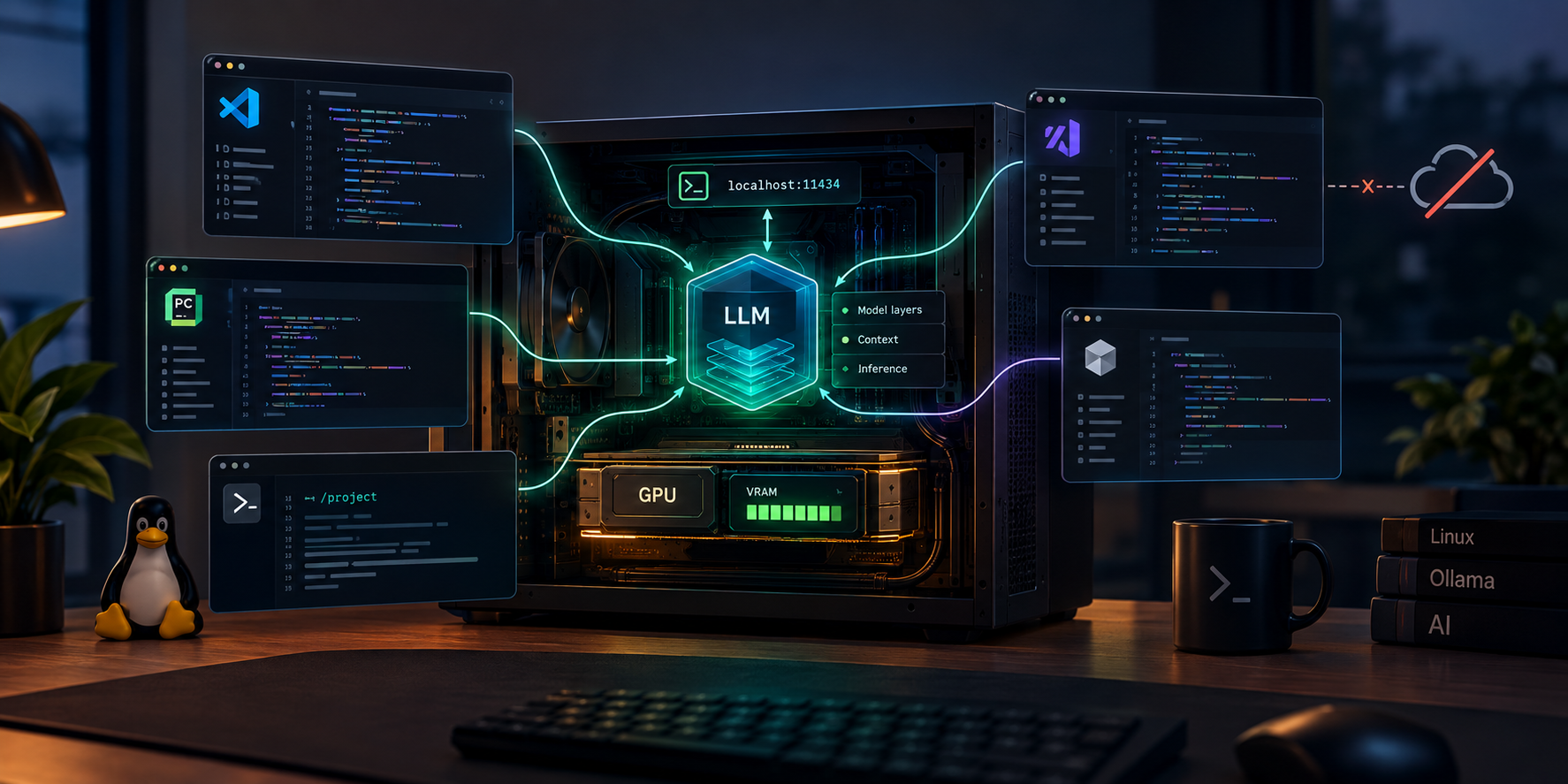
Running your own language model locally gives you three things the cloud doesn't: privacy (your code never leaves the machine), no per-token costs, and independence from provider limits. The simplest path on Linux is Ollama — a tool that downloads, quantizes, and serves models with a single command, while also exposing an OpenAI-compatible API. This article walks through the whole process: from installation, through choosing a model that matches your GPU, to using the model as a coding agent. I devote a separate, substantial section to which IDEs actually work well with a local model — with a concrete rundown of VS Code, PyCharm, Antigravity, Cursor, and Zed.
To ground the theory in numbers, in several places I use the example of a modern developer laptop: NVIDIA RTX PRO 500 (Blackwell), 6 GB VRAM, 64 GB RAM. It's a good illustration of a typical situation — small VRAM paired with a large amount of system RAM.
What Ollama is and how it works
Ollama is a lightweight runtime for running LLMs locally. It downloads ready-made, quantized models from its own registry, automatically detects the GPU (NVIDIA/AMD), and serves the model through a local HTTP server on port 11434. Most importantly: it exposes an OpenAI-compatible API endpoint at http://localhost:11434/v1, which means most tools that "speak OpenAI" can be pointed at a local model.
Under the hood, Ollama relies on llama.cpp and the GGUF format, along with quantization — compression of the model's weights that drastically reduces memory requirements at the cost of a small quality loss. This is what lets models in the 30B range fit on consumer graphics cards.
Installation on Linux
The official installer detects your distribution and sets up a systemd service:
curl -fsSL https://ollama.com/install.sh | sh
After installation, Ollama runs as a background service. Check its status and version:
systemctl status ollama
ollama --version
GPU drivers
- NVIDIA — you need the drivers and CUDA installed. Ollama will detect the card automatically. Verify with
nvidia-smi, which should show the card. - AMD — Ollama supports ROCm for supported Radeon cards.
- CPU only — Ollama will work without a GPU, but slowly (only sensible for the smallest models).
After launching a model you can check whether it's actually running on the GPU:
ollama ps # the PROCESSOR column shows the GPU-vs-CPU split
A pitfall with the newest cards. The latest generations of NVIDIA GPUs (Blackwell and newer) require open kernel modules — on Ubuntu that's the
nvidia-driver-<version>-openpackage instead of the classicnvidia-driver-<version>. Installing the closed-source variant results in the card failing to initialize at all: the kernel log showsRmInitAdapter failedalong with a message that it "requires use of the NVIDIA open kernel modules," andnvidia-smireports no devices. The fix is to switch to the-openvariant and reboot. On the RTX PRO 500 (Blackwell) laptop, this was a hard requirement for Ollama to run on the GPU instead of the CPU.
Basic commands
ollama pull qwen2.5-coder:7b     # download a model
ollama run qwen2.5-coder:7b      # download (if needed) and run interactively
ollama list                      # list downloaded models
ollama ps                        # models currently loaded into memory
ollama rm qwen2.5-coder:7b       # remove a model
ollama show qwen2.5-coder:7b     # parameters, template, license
In interactive mode, commands starting with / come in handy, e.g. /bye ends the session, and /set parameter num_ctx 8192 changes the context length on the fly.
Quantization and VRAM — the foundation of model selection
Before choosing a model, remember the one rule that decides everything: the model should fit entirely in VRAM. A model fully loaded onto the GPU runs 5–10× faster than one that "spills over" into system RAM. A real-world example: a 32B model running at ~60 t/s in VRAM drops to ~1–2 t/s the moment it starts using RAM.
Quantization is the lever you use to fit a model to your card:
| Quantization | Quality | VRAM usage (example for 30B-A3B) |
|---|---|---|
| FP16 | maximum | ~66 GB |
| Q8 | near-lossless | ~33 GB |
| Q4_K_M | recommended balance | ~16.5–18 GB |
| Q2 | noticeable quality loss | ~8.3 GB |
The practical default choice is Q4_K_M. Only reach for Q5/Q8 when you have VRAM to spare — both for the weights and for the context (KV cache) on top. The overriding rule: a smaller model that fits in memory usually beats a larger one that spills over.
The exception: MoE models and RAM offloading
The "everything in VRAM" rule is worth qualifying with MoE (Mixture of Experts) models, which have a large number of parameters but activate only a fraction of them per token. For example, qwen3-coder:30b has 30 billion parameters, of which only ~3 billion are active. Such models tolerate RAM offloading much better than dense models, because only a small, active slice of the weights has to travel across the memory bus per token.
This opens the door on machines with little VRAM but plenty of RAM. On the laptop mentioned above (6 GB VRAM + 64 GB RAM):
qwen2.5-coder:7b(~4.7 GB in Q4) fits entirely within 6 GB of VRAM — it runs fast, fully on the GPU.qwen3-coder:30b(~19 GB) does not fit in 6 GB, but thanks to 64 GB of RAM it can run with offloading, and its MoE architecture (3B active) keeps the speed tolerable.
The takeaway: when buying or evaluating hardware, a large amount of system RAM is a sensible complement to modest VRAM — it lets you reach for MoE models whose dense equivalent would be out of reach.
Matching a model to your hardware class
Instead of one single "best" model, match it to your amount of VRAM. The thresholds below are practical starting points for coding work.
"Small" class (≤ 8 GB VRAM, including laptops)
Goal: testing the whole workflow and light, everyday tasks.
- 6–8 GB VRAM —
qwen2.5-coder:7b(~4.7 GB in Q4). The best small coding model in this budget; it beats older CodeLlama and DeepSeek-Coder at code completion. - CPU only / low RAM —
qwen2.5-coder:1.5bor:3b. It will be slow, but lets you test the integrations.
ollama run qwen2.5-coder:7b
At this stage it's worth checking: does the model respond sensibly, does it run on the GPU (ollama ps), what's the generation speed, and can it be hooked up to an editor.
"Medium" class (12–16 GB VRAM)
A comfortable range for real coding work:
qwen2.5-coder:14b(~10 GB in Q4) — solid for everyday work.devstral:24b— a local agentic model from Mistral, requires ≥16 GB VRAM, good for agentic tasks.deepseek-coder-v2:16b(lite) — a budget option for cards around 12 GB.
ollama run qwen2.5-coder:14b
"Large" class (24 GB+ VRAM)
The level where a local model starts genuinely replacing the cloud for agentic coding. The leader is qwen3-coder:30b:
- MoE 30B-A3B architecture (of 30B parameters, only ~3B are active per token),
- ~16.5–18 GB in Q4_K_M — fits on a 24 GB card with headroom for context,
- native 256K context (expandable), trained for agentic tasks, and native tool calling — key for working as an agent.
ollama run qwen3-coder:30b
Variants depending on the card:
- 24 GB (RTX 3090/4090) —
qwen3-coder:30bin Q4_K_M, ~22–24 t/s, ~6 GB of headroom for the KV cache. - 32 GB (RTX 5090) — the same model in Q4, or the higher-quality Q5_K_M (~22 GB), with room for a long context.
- 48 GB+ (2× RTX 3090, A6000) —
qwen3-coder:30bin Q8, or heavier models; the fullqwen3-coder:480breally requires server-grade hardware or a hosted version.
Map: VRAM → recommended coding model
| VRAM | Example cards | Coding model |
|---|---|---|
| 6 GB | RTX PRO 500 (laptop), RTX 4050 | qwen2.5-coder:7b (fits entirely in VRAM); qwen3-coder:30b only with RAM offloading |
| 8 GB | RTX 3060/4060 | qwen2.5-coder:7b |
| 12 GB | RTX 3060 12 GB, 4070 | deepseek-coder-v2:16b (lite) or qwen3:8b |
| 16 GB | 4060 Ti 16 GB, 4070 Ti Super | qwen2.5-coder:14b, devstral:24b |
| 24 GB | RTX 3090/4090 | qwen3-coder:30b (Q4_K_M) |
| 32 GB | RTX 5090 | qwen3-coder:30b (Q4/Q5) |
| 48 GB+ | 2× 3090, A6000 | qwen3-coder:30b (Q8), 70B+ models |
A note on naming. In Ollama, the
qwen3-coderfamily exists only as MoE 30B and 480B — there is no 7B variant. For a small, fast model, use theqwen2.5-coderfamily instead (available in 0.5B / 1.5B / 3B / 7B / 14B / 32B). This is a common source of thepull model manifest: file does not existerror.
Overview of coding models (2026)
qwen3-coder(30b / 480b) — the current leader in local coding. The 30B-A3B version is the strongest agentic model most people can run locally. Tool calling, 256K context.qwen2.5-coder(0.5b–32b) — the best family of small and mid-size coding models.:32bis close to GPT-4o level on the Aider benchmark. The choice whenqwen3-coder:30bis out of your hardware's reach.devstral:24b— Mistral's local agentic model, 128K context.deepseek-r1/deepseek-coder-v2— good for reasoning through tricky bugs, with a budget variant (16b lite) for 12 GB cards.
Tuning and configuring Ollama
You control the server's behavior with environment variables (for the systemd service, set them in an override file):
sudo systemctl edit ollama
[Service]
Environment="OLLAMA_HOST=0.0.0.0:11434"   # Listen on the network too (be careful!).
Environment="OLLAMA_ORIGINS=*"            # Allow CORS requests (needed by some plugins).
Environment="OLLAMA_KEEP_ALIVE=30m"       # How long a model stays in memory.
Environment="OLLAMA_NUM_PARALLEL=2"       # Number of parallel requests.
Environment="OLLAMA_FLASH_ATTENTION=1"    # Save KV-cache memory.
Environment="OLLAMA_MODELS=/data/ollama"  # Where downloaded models are stored.
After making changes: sudo systemctl daemon-reload && sudo systemctl restart ollama.
The most important parameter for coding work is the context length (num_ctx). It's often low by default, while an agent needs a large window — too small a context causes the system prompt to be truncated and the agent to "loop." You can set it per session (/set parameter num_ctx 32768) or permanently in your own Modelfile:
FROM qwen3-coder:30b
PARAMETER num_ctx 32768
ollama create qwen3-coder-32k -f ./Modelfile
You can also overwrite an existing model under the same name (FROM qwen3-coder:30b + ollama create qwen3-coder:30b -f ./Modelfile) — Ollama will reuse the shared weight layers, so nothing gets re-downloaded.
This change is persistent. The
num_ctxparameter gets baked into the model definition in Ollama's storage (~/.ollama/models), not into theModelfile— the Modelfile is only needed at the moment ofollama createand can be deleted afterward. The setting survives a service or system restart. You can inspect it at any time withollama show <model> --modelfile(you'll see aPARAMETER num_ctx ...line).Note: a larger
num_ctxeats into VRAM for the KV cache. On cards with little VRAM (e.g. 6 GB), a reasonable compromise is 16384; with a larger window, the model will start spilling into RAM.
Which IDEs work well with a local model
The level of support varies drastically between editors. First a quick verdict, then the details.
| IDE / tool | Local model (Ollama) support | How | Rating for a local agent |
|---|---|---|---|
| VS Code | very good, native | Continue, Cline, Roo Code extensions connect to localhost:11434 |
best choice |
| PyCharm / JetBrains | good, native | built-in AI Assistant, ProxyAI, Continue | very good choice |
| Zed | good, built-in | native Ollama provider in settings | good, fast editor |
| Cursor | weak / compromised | requires an HTTPS tunnel, Tab is cloud-only, Agent mode can be buggy | not really suited for a local agent |
| Antigravity | no native support | closed list of cloud models (Vertex Model Garden), no BYOK | not intended for local models |
VS Code — the best support
VS Code has the richest ecosystem of extensions that connect to Ollama directly, with no tunnels and no routing through the cloud:
- Continue — a model-agnostic extension for chat, editing, and autocompletion. Natively supports the
ollamaprovider. The simplest entry point. - Cline and Roo Code — extensions oriented toward an agentic workflow (planning, making file changes, using tools). They make the best use of a model with tool calling, like
qwen3-coder:30b. Remember to setnum_ctx ≥ 32k, or the agent's system prompt will get truncated.
Continue configuration (file ~/.continue/config.json; newer versions use config.yaml — both work):
{
  "models": [
    {
      "title": "Qwen2.5 Coder 7B",
      "provider": "ollama",
      "model": "qwen2.5-coder:7b",
      "apiBase": "http://localhost:11434"
    }
  ],
  "tabAutocompleteModel": {
    "title": "Qwen2.5 Coder 1.5B",
    "provider": "ollama",
    "model": "qwen2.5-coder:1.5b",
    "apiBase": "http://localhost:11434"
  }
}
Setting apiBase explicitly is always recommended — without it, silent connection errors can occur. Once the model is set, you get chat, inline edit (Ctrl+I), and autocompletion from the local model, fully offline once the model is downloaded.
PyCharm / JetBrains — very good support
In the JetBrains ecosystem there are three sensible paths:
- Built-in AI Assistant — JetBrains' official assistant supports local models through Ollama. Since it's part of the IDE, it's always compatible with the current build. Setup:
Settings → Tools → AI Assistant → Providers & API keys→ Ollama provider, URLhttp://localhost:11434→ Test Connection, then assign the model in the Model Assignment section. Limitation: with local models, the AI Assistant doesn't call tools (MCP), so it won't work as a full file-editing agent. - ProxyAI (formerly CodeGPT) — an open-source plugin with support for local models (Ollama, LM Studio, llama.cpp) and an agentic mode.
- Continue — has a JetBrains plugin, and its
~/.continue/config.jsonconfiguration is shared with VS Code.
A nuance about plugin compatibility with the newest IDEs. The Marketplace hides plugins marked as incompatible with the current build. On very recent releases (for example, PyCharm 2026.2, build line
262.*), the Continue plugin can fail to show up in the Marketplace search at all, until the authors extend the compatibility range. In that situation, reach for the built-in AI Assistant or ProxyAI (which usually keep up faster), use the version from the EAP channel, install the plugin "from disk" after extending theuntil-buildattribute, or use the equivalent in VS Code.
Terminal-based agent mode — Aider
Regardless of the editor, for "just do the whole task for me" work, the most reliable tool for use with local models is Aider — a terminal-based agent (including inside the IDE's own Terminal tab). Unlike editor-integrated assistants, Aider finds and edits files in the git repository on its own, and saves every change as a separate commit (easy to undo with /undo).
python -m pip install aider-install && aider-install

cd /path/to/your/git/repo
export OLLAMA_API_BASE=http://127.0.0.1:11434
aider --model ollama_chat/qwen2.5-coder:7b   # note the ollama_chat/ prefix, not ollama/
The most important commands within a session:
| Command | Action |
|---|---|
| (plain text) | a change request — Aider shows the diff, saves the file, and makes a commit |
/add path |
add a file to the context |
/drop path |
remove a file from the context |
/ask question |
ask a question without modifying files |
/architect |
"plan first, then edit" mode — better for smaller models |
/undo |
undo Aider's last commit |
/diff |
show the latest changes |
/run command |
run a command (e.g. tests) and feed the output into the context |
/test |
run tests and automatically try to fix errors |
For local models, it's worth building a variant with a larger context beforehand (see the section on num_ctx), e.g. qwen2.5-coder:7b-16k, and pointing Aider at it.
Antigravity — no native local model support
Antigravity (Google's IDE) uses a curated, closed list of models served through Vertex Model Garden — including Gemini 3.x, Claude (Opus/Sonnet), and GPT-OSS-120B. In practice:
- no "Add Custom Model" button and no BYOK (Bring Your Own Key),
- no OpenAI-compatible endpoint configuration and no way to point it at
localhost:11434, - models on the list can't be added, removed, or swapped for your own.
In other words: you cannot natively hook up a local Ollama to Antigravity. Guides circulating online that describe configuring Ollama through an "OpenAI-compatible provider" in Antigravity are mostly outdated or incorrect. Workarounds via MCP or a proxy are unofficial and unreliable.
Cursor — possible, but a compromise
Cursor doesn't directly support models on localhost — it routes requests through its own servers, so you have to expose Ollama through a public HTTPS tunnel (ngrok/Cloudflare Tunnel) and enter the URL under Settings > Models > Override OpenAI Base URL (with the /v1 suffix, and any non-empty API key). On top of that, Tab always runs in the cloud, and Agent mode can be buggy. It can be set up for chat and Cmd+K, but as a full local agent, Cursor doesn't hold up.
Zed — an alternative worth knowing about
Zed is a fast, native editor with built-in Ollama support (a local provider in settings). Lightweight and performant, a good option for working with a local model without installing plugins.
Recommended step-by-step path
- Install and try it out — install Ollama, make sure the GPU is visible (
nvidia-smi,ollama ps), runqwen2.5-coder:7band test it in the terminal, then in VS Code + Continue or PyCharm (AI Assistant/ProxyAI). - Coding work — on 12–16 GB cards, move up to
qwen2.5-coder:14bordevstral:24b; turn on agentic mode (Cline/Roo Code in VS Code, or Aider in the terminal). - A dedicated local agent — on 24 GB+ cards, set up
qwen3-coder:30bin Q4_K_M with an expanded context; it's the most capable local coding agent with tool calling. On machines with little VRAM but plenty of RAM, you can run the same model with offloading (MoE tolerates this well). - Choosing an editor — for a local agent, go with VS Code (broadest support) or PyCharm. Leave Antigravity for its cloud models, and consider Cursor only if you're willing to accept the tunnel and its limitations.
Summary
Ollama on Linux is the simplest path to local models: one command installs the runtime, another downloads and runs the model, and an OpenAI-compatible API opens up integrations. Start with qwen2.5-coder:7b to try it out, move through :14b/devstral on a 16 GB card, and on a 24 GB+ card set up qwen3-coder:30b as your dedicated local agent — today it's the strongest coding model you can run on consumer hardware, with tool calling and a 256K context. The hardware rule: the model should fit entirely in VRAM (Q4_K_M as the default balance), with MoE models as the exception, tolerating offloading surprisingly well on machines with plenty of RAM. As for the editor — VS Code and PyCharm connect to Ollama natively (Continue/AI Assistant/ProxyAI, and for an agent, Cline/Roo Code or Aider). Antigravity doesn't support local models (a closed cloud list), and Cursor requires tunnels and has limitations.
References
- Ollama — official site
- Ollama — model library
- Ollama — GitHub repository
- Best Ollama Models: Coding, RAG & Agents — June 2026 (Morph)
- Ollama Models Cheat Sheet 2026 (ComputingForGeeks)
- Best Ollama Coding Models by NVIDIA RTX GPU: VRAM Tier Guide (haimaker.ai)
- QwenLM/Qwen3-Coder — repository
- Run Qwen3-Coder 30B-A3B Locally — VRAM thresholds (RunAIatHome)
- NVIDIA — Open GPU Kernel Modules (GitHub)
- Continue — documentation
- Continue — JetBrains plugin (Marketplace)
- ProxyAI — JetBrains plugin (Marketplace)
- Aider — project site
- Local AI Coding Assistant: VS Code + Ollama + Continue (SitePoint)
- Using Ollama with VS Code, IntelliJ, and Eclipse (Medium)
- Can You Use Local Models (Ollama) with Antigravity? (Agentpedia)
- Cursor Forum — How can I use a local LLM on my desktop/AI computer?
- Zed — documentation (AI / Ollama)