Obsidian — a Guide to Its Capabilities
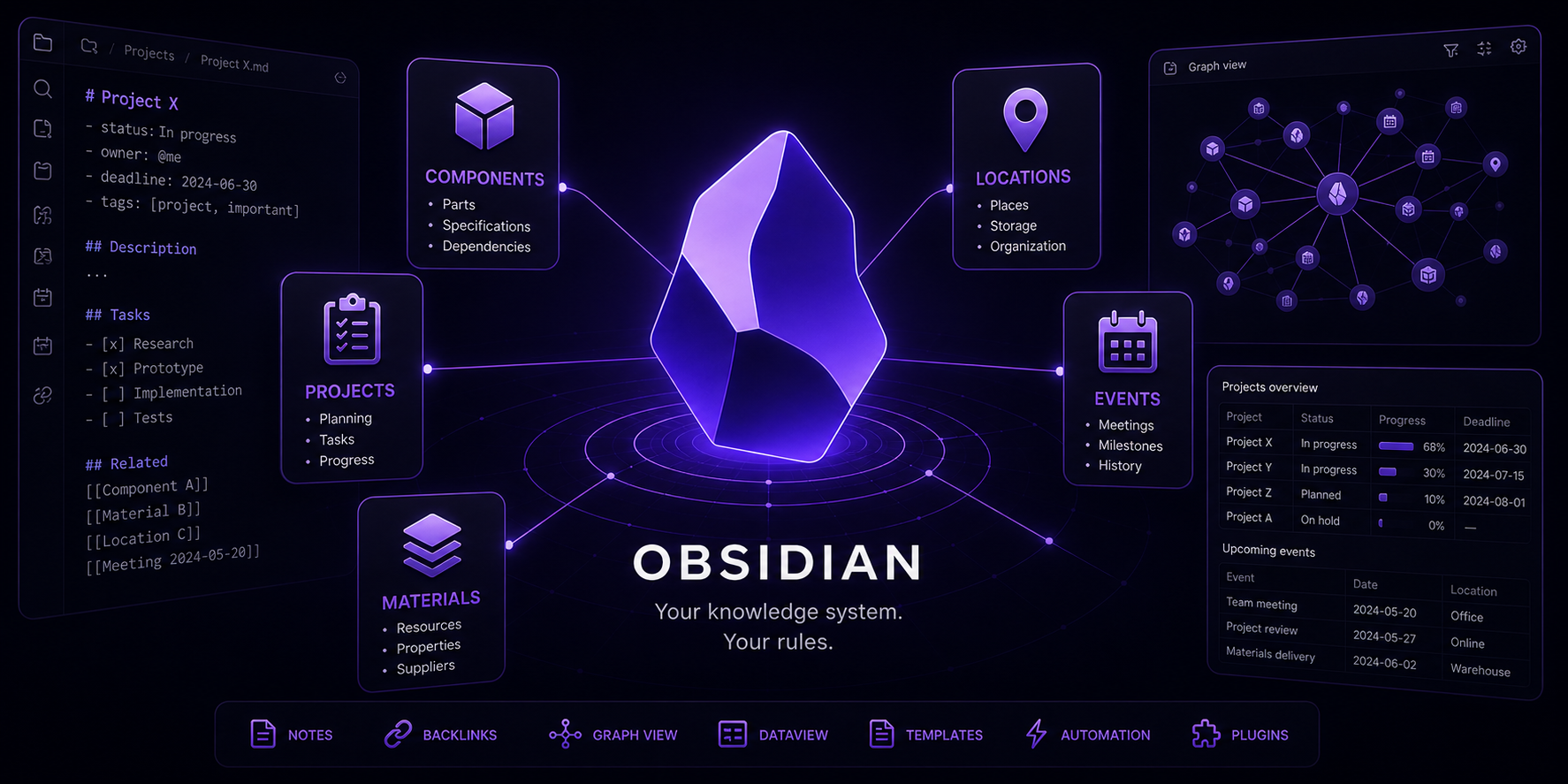
Obsidian — Why This Tool Changed the Way I Think About Notes
For a long time I was looking for something that seemed simple: a single note-taking app that works on my phone, tablet, and computer, syncs between them seamlessly, lets me write but also draw with a stylus on the tablet — something like Samsung Notes, but more serious. I tried various solutions; none was perfect. Then one day I asked ChatGPT for recommendations. It started listing options, and at some point added something like: "Since you're a Linux person, you probably know Obsidian."
I didn't. And that was the moment that changed quite a bit in my digital life.
What Exactly Is Obsidian?
Obsidian is a note-taking and note-management application written by the small company Dynalist Inc. It runs on Windows, macOS, Linux, Android, and iOS. It is free for personal and commercial use (the optional paid sync is a separate service — more on that in a moment).
What sets Obsidian apart from Notion, Evernote, or Google Keep is its fundamental philosophy:
Your notes are plain Markdown files on your disk. Nothing more.
That sentence changes everything. There is no cloud database, no vendor lock-in, no proprietary format. Every note is a .md file you can open in any text editor, copy, push to GitHub, archive, process with a script — do anything you want with it. Your notes won't disappear when the company goes bankrupt, changes its pricing, or gets acquired. They are your property in the literal sense.
What Does Day-to-Day Work with Obsidian Look Like?
Markdown Editor — Live Preview and Source Mode
Obsidian supports Markdown — a lightweight markup language where **bold** gives bold, # Heading creates a heading, and `code` renders code. But you don't have to see the raw syntax — Obsidian offers Live Preview mode, where the note looks like a formatted document and you edit it directly without switching between edit and preview modes. If you prefer to see raw Markdown, source mode is always one click away.
Obsidian also supports extended Markdown syntax: tables, highlights (==highlight==), keyboard shortcuts, callouts (coloured information blocks), and even embedding other notes with !<span class="text-amber-500/50" title="Nieznany link">[[note name]]</span>.
Bidirectional Links — Your Second Brain
One of Obsidian's most distinctive features is bidirectional links (backlinks). When I write <span class="text-amber-500/50" title="Nieznany link">[[note B]]</span> in note A, not only does a link from A to B appear — Obsidian also automatically tracks that B is linked from A. In the backlinks panel of any note, I can see every document that points to it.
This makes Obsidian suitable for building a Zettelkasten — a knowledge system where notes are connected by a web of relationships rather than a rigid folder hierarchy. The visualisation of those connections (the Graph View) is one of the coolest views available — I can see my knowledge base as an interactive network of nodes.
You don't have to embrace the Zettelkasten philosophy, though. Obsidian works equally well as a plain notebook with a folder hierarchy.
Properties — Note Metadata
Each note can have properties — data fields you add in the YAML header of the document. For example:
---
status: in progress
project: Cafeteria Renovation
date: 2026-03-15
priority: high
tags: [project, electrical]
---
These metadata fields then become the basis for creating dynamic data views — more on that in the Dataview and Bases sections below.
Sync — Dropbox Instead of a Paid Subscription
Obsidian offers its own sync service — Obsidian Sync — for around $10 per month. It is convenient, end-to-end encrypted, and works natively. But it is not the only option.
Because a vault (the folder containing your notes) is simply a folder on disk, I can sync it with anything: Dropbox, Google Drive, Nextcloud, Syncthing, Git. I use Dropbox and it works without any issues — changes on my computer appear on my tablet and phone within moments, with zero additional configuration on Obsidian's side. I just point the mobile app to the Dropbox folder as the vault.
One caveat: on Android, Dropbox syncs the folder locally, so notes are available offline. On iOS this can vary depending on app settings — worth checking before rolling it out.
Plugins — Where Obsidian Really Shines
Obsidian has an ecosystem of over 2,700 community plugins and a dozen or so built-in ones. This is its true strength. Anyone can write a plugin in TypeScript, publish it to the repository, and anyone else can install it from within the settings. Quality varies, but the best plugins are genuinely excellent.
Dataview — Notes as a Database
The most important plugin for advanced users. Dataview lets you treat your vault as a database and run SQL-like queries against it. I use it heavily — I built myself a company records system: component lists, project notes with dynamically generated status tables, task tracking.
A simple query example:
```dataview
TABLE project, status, date
FROM "Projects"
WHERE status != "completed"
SORT date ASC
```
This generates an automatically updated table of all open projects. When I change the status in a project note, the table refreshes.
Dataview also supports DataviewJS — fully programmable JavaScript with access to the entire vault. I have written several scripts that automatically aggregate data from dozens of notes and generate summaries. It's not for everyone, but if you can code, the possibilities are nearly unlimited.
I wrote a separate article about exactly how I built the records system, in the Projects section, along with a link to the repository: Inventory system in Obsidian
Bases — Built-in Database (New in 2025)
In August 2025, with version 1.9.10, Obsidian made a new built-in feature available to all users: Bases. Think of it as a lightweight Notion Database equivalent — .base files present notes with metadata as a table, cards, or list, with filtering and sorting options.
Bases is not as powerful as Dataview (no custom query language or JavaScript), but it is simpler, more visual, and requires no plugin installation. For less technical users it may be sufficient.
On Obsidian's roadmap are additional views: Kanban, Calendar, Map — if delivered, Bases will grow into a serious project-management tool.
Excalidraw — Drawing and Sketching
The Excalidraw plugin is something I use mainly on the tablet with a stylus. It integrates the popular hand-drawn-style sketching tool directly into Obsidian. You can create diagrams, mind maps, and technical drawings, and everything is saved as a file in the vault, synced alongside your notes.
There are also a few other stylus-writing plugins: Ink (handwriting inserted between paragraphs of text) and Handwrite (an advanced drawing panel with OCR — converting handwriting to text).
It is not Samsung Notes with its native S Pen integration, but it works well enough for my needs: project sketches and quick notes on the tablet that I can also edit on the computer.
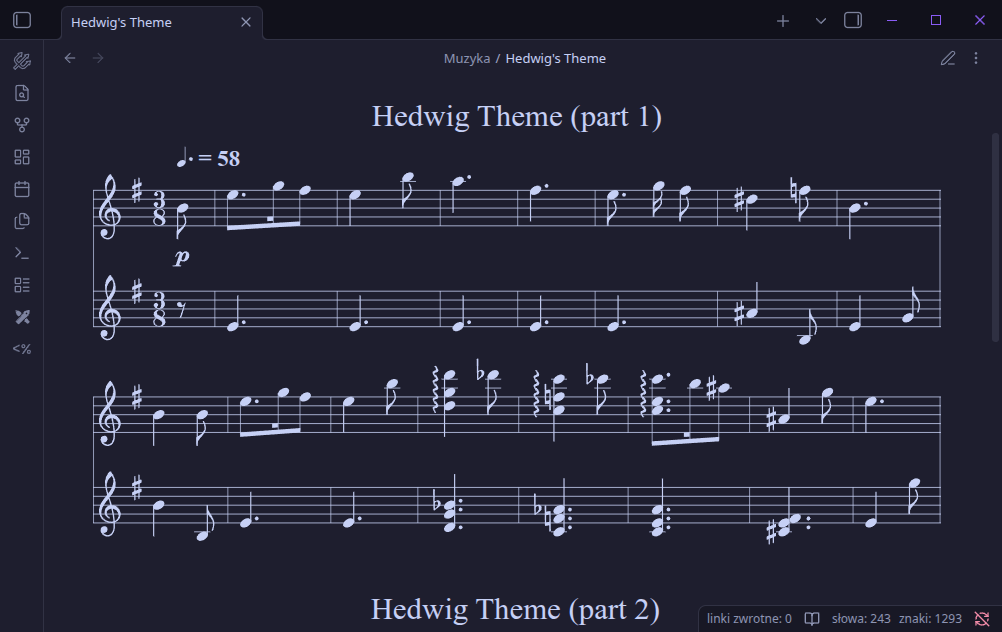
ABC Music Notation — Sheet Music in a Notebook
One of the most interesting examples of how far plugins can extend Obsidian: ABC Music Notation. I am learning to play keyboard, and instead of keeping sheet music in separate PDF files, I write it directly in the notebook in ABC format — a simple plain-text music notation. The plugin renders it as real sheet music and — what is absolutely magical — plays the piece right inside Obsidian.
It looks like this:
```music-abc
X:1
T:Sonata in C
M:4/4
K:C
|: C D E F | G A B c :|
```
This renders as a staff with notes and a play button. I have my own sheet-music library, indexed, searchable, and synced across devices.
Tasks and Calendar — Task Management
The Tasks plugin extends Markdown's standard checkbox handling (- [ ] task) with due dates, priorities, recurrence, and advanced filtering. I can collect tasks from all notes in one place:
```tasks
not done
due before tomorrow
```
Calendar adds a calendar view in the sidebar — each day is a journal file (daily note). The popular combination of Tasks + Calendar + Daily Notes creates an efficient planning system.
Templater — Templates with Logic
Obsidian's built-in templates are basic. Templater is a plugin that adds JavaScript, dynamic dates, operating-system calls, and keyboard shortcuts for inserting templates. I have ready-made templates for project notes, journals, articles, and meeting minutes — I create a new document, choose a template, and fill in the fields.
Canvas — Visual Thinking
The built-in Canvas feature is an infinite board where I can arrange notes, images, links, and connections between them. It is useful for brainstorming, mapping relationships between projects, and planning an article's structure. Something between FigJam and Miro, but integrated with the vault.
What's New in 2025–2026?
Obsidian is developing actively. A few important updates from recent months:
CLI (Command-Line Interface) — from version 1.12, Obsidian has a command-line tool that allows you to control the app from bash scripts, automate opening notes, and run commands. As a Linux person, I find this very welcome news.
Obsidian Headless — since February 2026, Obsidian Sync works in headless mode — you can run synchronisation on a server without a graphical interface. Useful for automation and home servers.
Native AI Assistant — a built-in AI assistant appeared at the end of 2025. Obsidian was always a good target for AI plugins (Smart Connections, Copilot, Local GPT); now something official is emerging. The AI plugin ecosystem is vast — over 100 AI-related plugins supporting local models (Ollama, LM Studio) and cloud models (OpenAI, Claude, Gemini).
Image Resizing in the Editor — a small but long-awaited feature: images in Live Preview can now be resized by dragging a corner. Simple, but it was missing.
Drag & Drop in Bases — files can now be dragged into Bases views, making content management even more convenient.
Kanban, Map, Calendar View in Bases — announced on the roadmap for 2026. If delivered, Bases will become a genuine competitor to Notion.
Multiplayer — real-time collaboration by multiple people on a single vault. Announced, not yet released — but if done well, it will be a breakthrough.
Who Is Obsidian Ideal For?
Obsidian works best if you:
- Want full control over your data — without dependence on any particular cloud provider.
- Like Markdown or are willing to learn it (it takes about an hour).
- Want to automate your note system — with scripts, plugins, Dataview.
- Work on multiple devices and want a consistent knowledge base everywhere.
- Are a developer, engineer, researcher, or writer — someone who produces and processes a lot of text.
- Are interested in Personal Knowledge Management (PKM).
Obsidian is not ideal if you:
- Need a simple, intuitive tool with no learning curve.
- Rely on native stylus input at the level of Samsung Notes.
- Need advanced team collaboration (Notion still wins there).
- Your notes are mainly photos and scans — Obsidian is primarily a text-based tool.
My Summary
I started by looking for a simple notebook replacement with sync. I ended up with a tool that simultaneously replaced my notebook, project management system, company records, music sheet library, and journal.
I sync the vault via Dropbox — it works perfectly between my Linux computer, Android phone, and tablet. On the tablet I use the stylus for sketches via Excalidraw. The company records system built on Dataview and custom scripts let me drop several external tools.
Obsidian is not for everyone. But it is nearly perfect for those who embrace its philosophy: your data, your tools, your rules.
Sources and Further Reading
- Obsidian Official Website — downloads, documentation, pricing.
- Obsidian Changelog — release history and latest versions.
- Obsidian Roadmap — upcoming features.
- Dataview Documentation — full Dataview plugin documentation.
- ABC Music Notation Plugin (GitHub) — sheet music and playback in Obsidian.
- Practical Overview of Bases — how to use Obsidian's built-in database.
- Obsidian Plugins Stats — statistics and catalogue of community plugins.
- Make It With Obsidian — Musical Notation — guide to musical notation in Obsidian.
- Obsidian Review 2026 (dev.to) — an honest review after three years of use.
- NxCode — Obsidian AI Second Brain — guide to AI integration with Obsidian.